Connect Claude
Last updated: October 8, 2026
AI assistants change their screens with updates. If something on this page no longer matches what you see, please let us know through the contact form or by email at support@tabico.me.
Before you start
You need a Tabico account. If you don't have one yet, sign up in the Tabico app with Google or Apple first, and sign in with the same account when connecting.
Steps
Tabico is listed in Claude's connector directory. Open Tabico's page with the button below and select "Connect". Tabico's sign-in page opens; sign in with Google or Apple and allow access, and you're done.
 Add Tabico in Claude
From the Claude app
To add it from inside the Claude app instead (the screenshots show the app in Japanese):
-
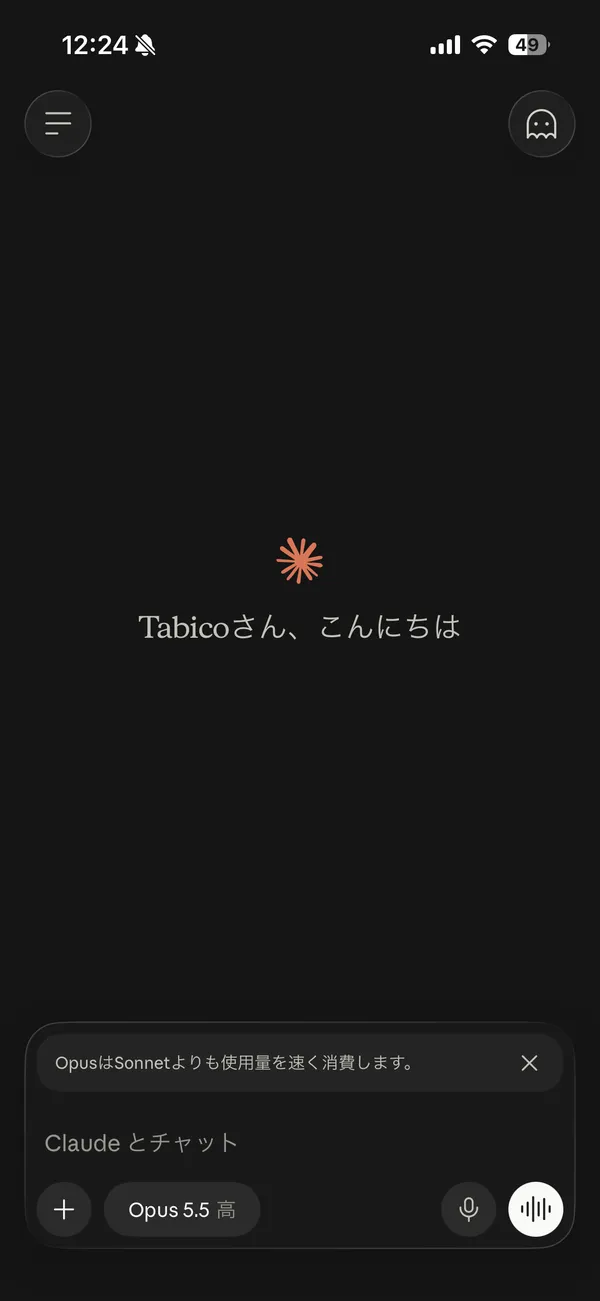
Open a chat and tap "+" at the bottom left.
-
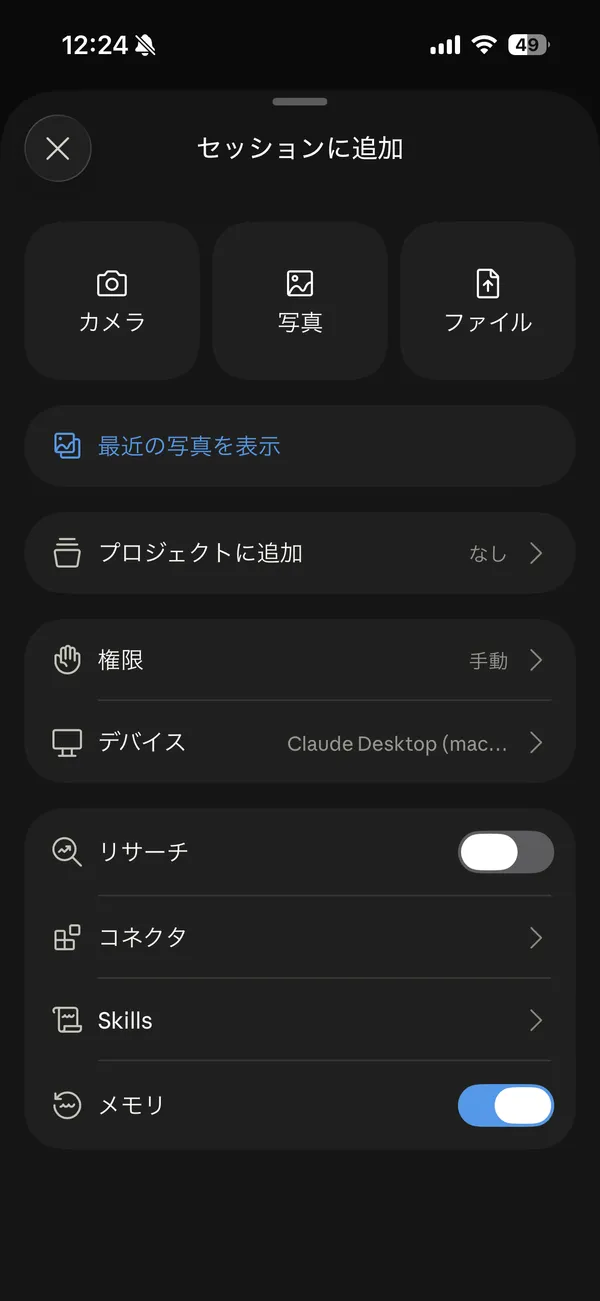
Choose "Connectors".
-
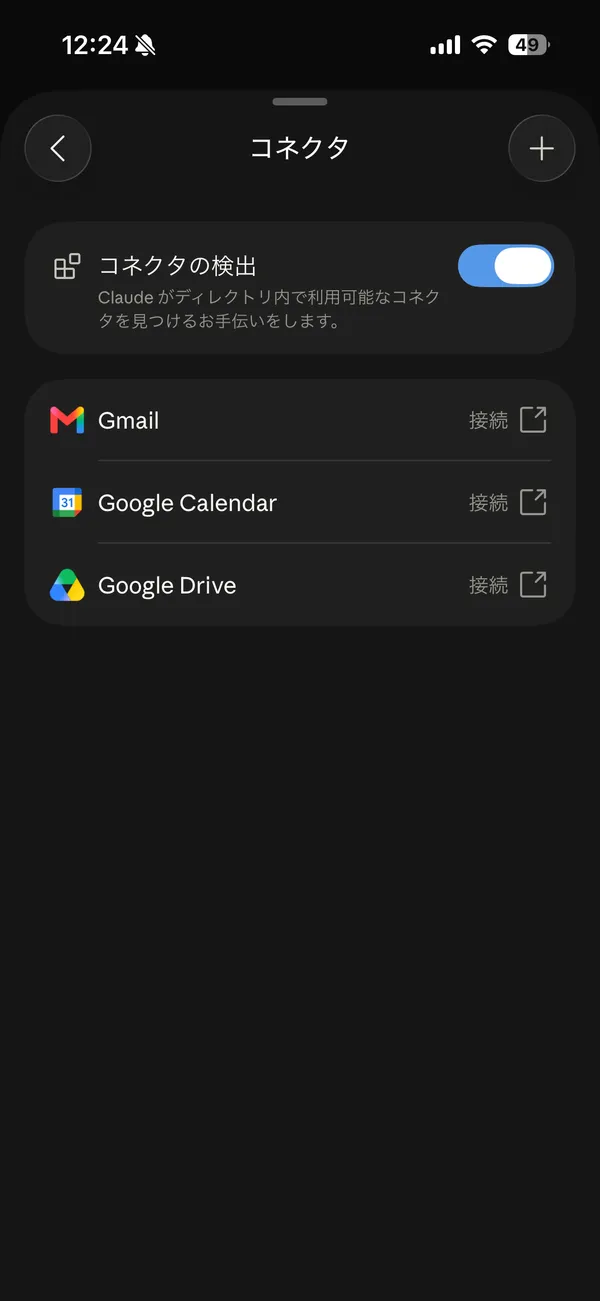
Tap "+" at the top right.
-
Choose "Browse connectors".
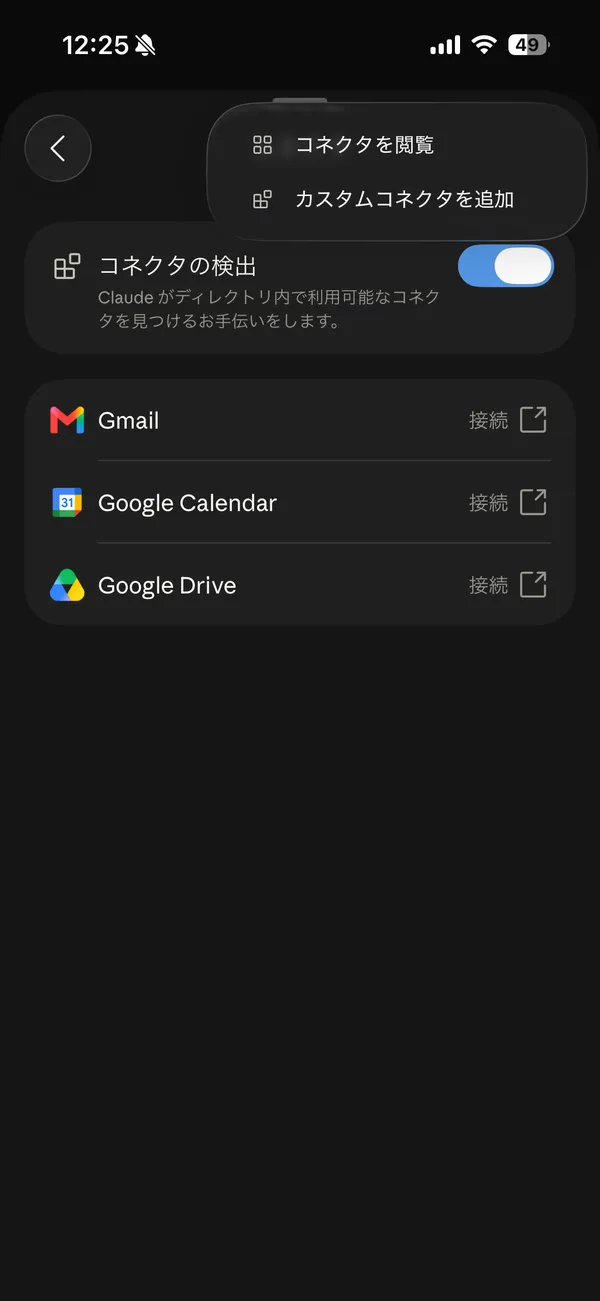
- Find "Tabico" and connect it. Tabico's sign-in page opens; sign in with Google or Apple and allow access.
- Back in Claude, ask about your trips in a chat. Claude may ask for your permission before it uses a tool.
Disconnecting
To disconnect, open Tabico in Claude's list of connectors and disconnect it.
What to try next
Once connected, try one of the sample prompts. For questions or problems, use the contact form or email support@tabico.me.